Zoom
Zoom segments are how TinyRec brings the camera in close. Auto by default — the app detects where to focus from your cursor. Switch any segment to manual to pin a fixed focus region for its whole duration.
Zoom is what turns a flat screen recording into something the eye can follow. TinyRec generates zoom segments automatically from your cursor activity the moment a recording opens in the editor — for most videos, you ship them as-is. When a particular zoom needs different behaviour, you switch that one segment to manual.
How auto zoom works
Auto is the default mode for every zoom segment. As soon as a recording lands in the editor, TinyRec scans the cursor track and emits zoom segments for the moments that matter — clicks, deliberate cursor movements, drags. Each segment lives on the Animation row of the timeline.
In auto mode, the focus point follows your cursor for the whole segment. The camera moves and pans to keep your cursor centred. That’s why auto zoom feels alive when you’re demoing a UI: wherever you click, the eye is already there.
What you’ll see on the timeline:
- Each zoom is a discrete segment with a duration and a depth.
- The video segment underneath is untouched — zoom is a layer on top, not a destructive edit.
- Click any segment to select it. The settings panel switches to Animation with the controls for that one segment.
Switching a segment to manual
Some shots aren’t about the cursor — a code snippet you’re talking through, a chart, a piece of UI you want to hold the camera on. For those, switch the segment to manual.
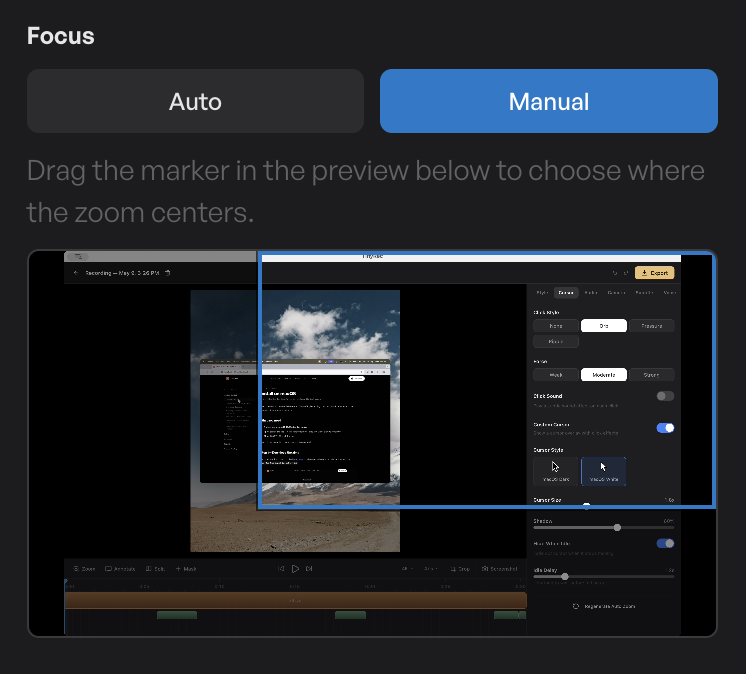
In the Animation panel, flip the toggle from Auto to Manual. The focus picker appears below — a small embedded preview of your video at the zoom segment’s start frame. Drag the marker to where you want the camera to look.
In manual mode, the camera holds that one focus point for the entire segment. No cursor tracking, no panning. The whole segment plays back zoomed in on whatever rectangle you picked. That makes it the right tool when:
- The cursor isn’t the focus — a code snippet, chart, or paragraph of text.
- You’re recording a talking-head with the camera bubble doing most of the work.
- You want the zoom to stay anchored across a section the auto analyser would have ended early.
You can mix auto and manual freely on the same project. Auto is fine for most segments; flip the few that need a pinned focus.
iPhone recordings are always manual. There’s no Mac cursor track on a phone screen, so auto wouldn’t have anything to follow — every iOS zoom is locked to manual mode automatically.
Adjusting zoom level
The depth slider in the Animation panel sets how far in the camera goes for the selected segment. Default values are sane for typical cursor activity; bump them up to make a single click feel more emphatic, dial them down for a gentler pull-in.
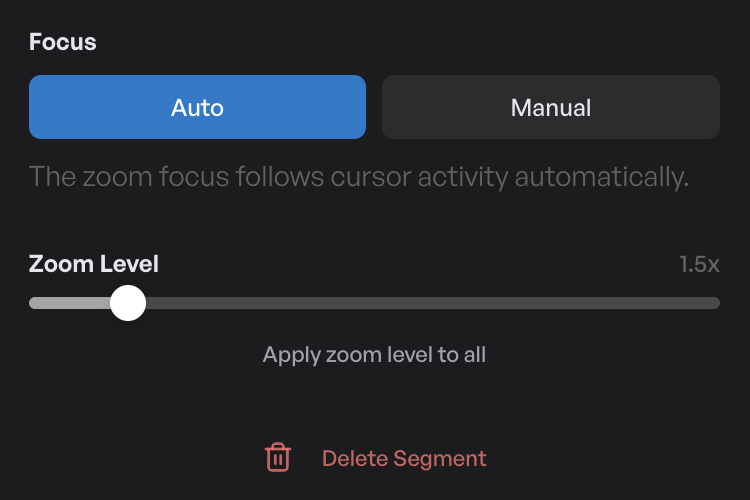
- Drag the slider to change the selected segment’s depth. The preview updates live.
- Apply zoom level to all — the button under the slider takes the current segment’s depth and applies it to every zoom in the project. Useful when you’ve tuned one segment and want the whole video to feel consistent without re-dragging every slider. One Cmd-Z reverts the whole apply.
Deleting a zoom
Click the segment, hit Delete Segment at the bottom of the Animation panel. The video underneath is untouched — the zoom layer just disappears. If you want different behaviour at the same spot, add a manual zoom in its place.
Regenerating
If you’ve trimmed the underlying video, made big changes to the take, or just want a fresh pass, switch to the Cursor tab in the settings panel and click Regenerate auto zoom at the bottom. TinyRec wipes the existing auto zooms and runs the analysis again on the current state of the timeline.
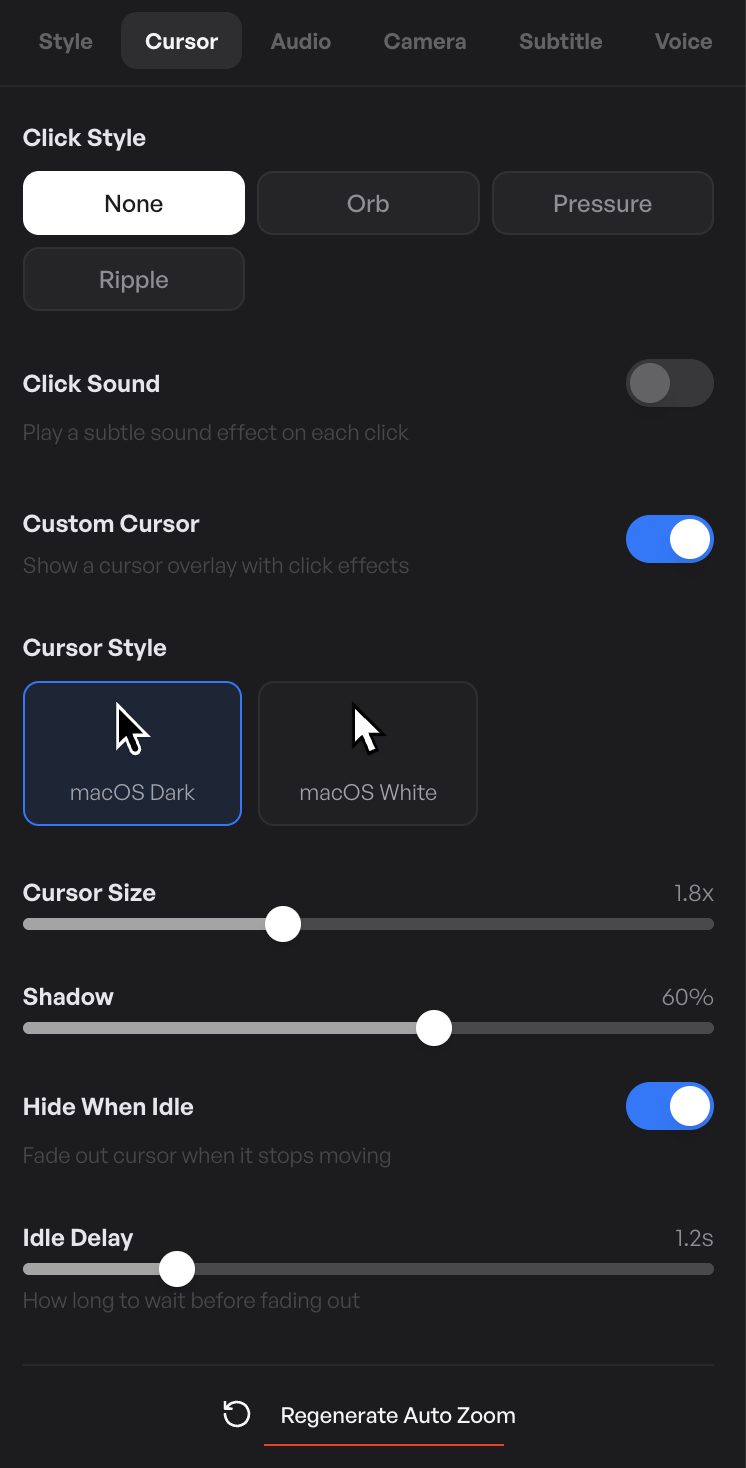
Regenerate replaces every zoom — including segments you’ve switched to manual or hand-tuned. If you’ve spent time perfecting a few of them, save the project first so you can undo if the new pass is worse.
What’s next
- Style your video — the look around the zoomed canvas.
- Timeline and trimming — moving and resizing zoom segments precisely.