Subtitles
Auto-generate captions from your audio with local Whisper, then style and edit them to match your brand. Runs entirely on-device — no cloud, no per-minute charge.
Most viewers watch screen recordings with the sound off. Subtitles change that — they make every video readable in a feed, accessible to viewers who can’t hear, and easier to follow even with audio on. The Subtitle tab in the editor handles the whole workflow: transcribe → style → edit → export.
Everything runs locally with Whisper. Your audio never leaves the Mac. There’s no cloud queue and no per-minute charge.
First: download a Whisper model
Before the first transcription, pick a Whisper model and let TinyRec download it. This happens once per model — the file is cached locally and reused on every subsequent run. You only come back to this step when you want to switch models (e.g. trying a larger one for better accuracy on a tricky accent).
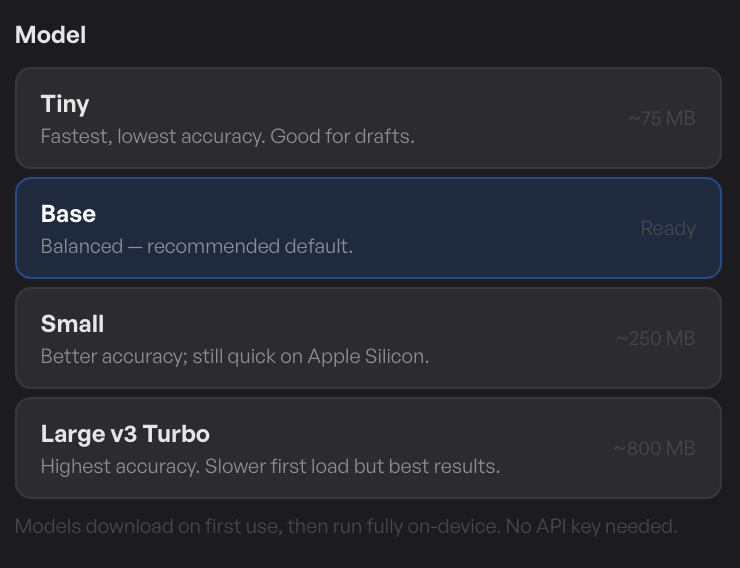
What to know when picking:
- Smaller models download faster (a few hundred MB), run faster, and are more error-prone on accents, technical vocabulary, and very short clips.
- Larger models are slower to download (a couple of GB) and slower per transcription, but noticeably more accurate — especially on non-English audio and noisy recordings.
- Default pick — start with the small/medium model. It covers most narrations well and runs faster than real-time on Apple Silicon.
The download progress bar shows in the picker while it’s running. Once it’s done, the model stays installed.
Generate the transcript
With a model installed, open the Subtitle tab and click Generate. TinyRec runs the full audio track through Whisper locally and produces a list of timed subtitle cues — one per phrase. The transcript drops onto the timeline as its own row of cue segments.
A few defaults to know:
- Language — auto-detected by default. If your audio is mixed-language or short, set it explicitly so Whisper doesn’t guess wrong.
- Run time — typically faster than real-time on Apple Silicon. A 5-minute recording transcribes in about 1–2 minutes on an M-series Mac with the default model.
Whisper supports 100+ languages out of the box, including Vietnamese, Mandarin, Japanese, Spanish, French, German, Portuguese, Korean, Hindi, Arabic, and many more. Pick the language explicitly when accuracy matters.
Edit individual cues
Click any subtitle cue on the timeline to select it. The settings panel switches to the cue and shows:
- Text — what the viewer reads. Whisper is good but not perfect; fix typos, expand contractions, add proper nouns it didn’t know.
- Start / End — drag the cue’s edges on the timeline to retime it. Useful when Whisper’s word-level timing is off by a beat.
- Word-level timing — for animated subtitle styles that highlight one word at a time, the per-word timestamps are tweakable in an inline editor. The animation hits the word at exactly the timing you set.
Cue edits are non-destructive — re-running Generate replaces them, so make text edits after you’re sure of the transcript pass.
Style the look
Subtitles are baked into the export, so the style you pick is what the viewer sees. The Style section opens with a grid of opinionated presets — big bold yellow, clean white-on-black, animated word-highlight, and a handful more. Pick one and you’re done.
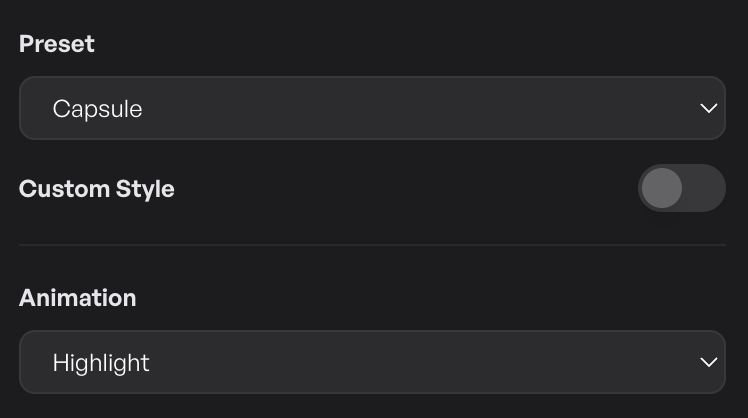
For finer control, flip the Advanced toggle. Every individual style field opens up: font (system fonts plus any TTF/OTF you’ve added in Settings → Fonts), weight (100–900), size (aspect-aware so 16:9 and 9:16 look consistent), text colour, stroke colour and width, background pill (opacity + corner radius), letter spacing.
The preview canvas updates live as you tune.
Animations
Pair the static style with an animation that times to the audio:
- None — the cue appears and disappears as a block. Simplest, most readable.
- Fade — gentle in/out at the cue’s edges.
- Pop — scale-up entrance, scale-down exit. Punchier.
- Word highlight — words are highlighted one at a time as they’re spoken. Uses the per-word timing from Whisper. Best for tutorial-style narration.
- Karaoke — like word highlight but each word stays highlighted once spoken. Cumulative.
Animations apply project-wide; you don’t pick a different one per cue.
What’s next
- Voiceover — generate narration from text. The Voiceover and Subtitle pipelines share underlying transcription so you can swap one for the other.
- Audio editing — the audio track that subtitles transcribe; the same transcript also drives filler-word detection.
- Style your video — visual style around the subtitle layer.