iPhone not detected
Wired iPhone not appearing in TinyRec's source picker? Four checks usually cover it: cable, iOS version, lock state, and the macOS "Allow accessory" prompt.
You plugged your iPhone in, switched to the iPhone tab in TinyRec’s source picker, and the device list is empty (or the Refresh button isn’t bringing it back). Almost every case traces to one of four things. Run through them in order — most issues fix themselves at step 1 or 2.
1. Use a good data cable
Not every USB-C / Lightning cable can carry video. The cheap ones bundled with chargers, or the worn-out one in your bag, are often charge-only — power flows but data doesn’t, and screen recording specifically needs the data lines.
- Use the cable that came with your iPhone if you can. Apple ships data-capable cables in the box.
- If you’re using a third-party cable, check the label — it should say “data” or “USB 2.0/3.x” somewhere on the cable or packaging. Charge-only cables typically don’t.
- Try a different cable even if the current one works for charging. The fastest way to rule out a cable is to swap it.
A flaky cable is the most common cause of “iPhone shows up sometimes, missing other times” — it’ll usually work for a few seconds then drop, or only work in specific orientations.
2. Update your iPhone
Apple regularly tightens the wired-screen-recording handshake in iOS point releases. If your iPhone is on a major iOS version older than the one TinyRec was tested against, the device discovery handshake can fail silently.
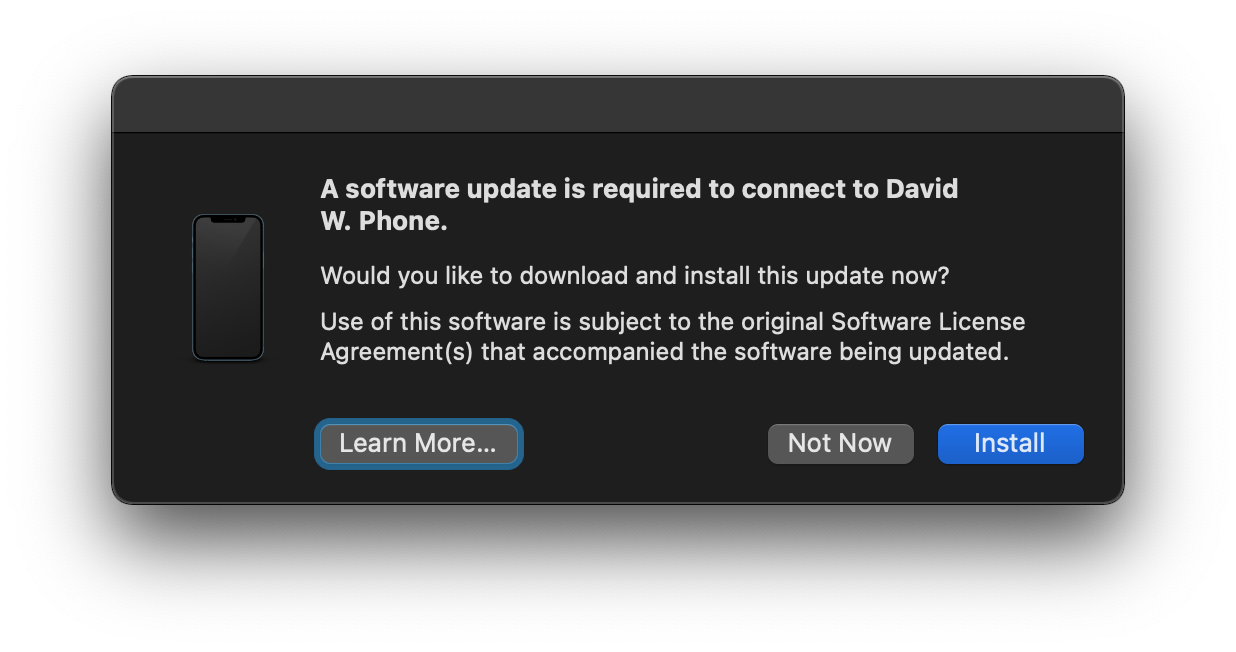
Open Settings → General → Software Update on the iPhone and install the latest available version. Reboot both the phone and your Mac after the update lands. Plug in fresh and try again.
This also covers a related case — iOS occasionally introduces new permission prompts that didn’t exist on older versions; updating gets you the latest set so you can grant them.
3. Unlock the iPhone
iOS won’t expose its screen for recording while the device is locked. Wake the phone, swipe to the home screen (or face/touch ID through the lock screen), and leave it unlocked while you’re in TinyRec’s source picker.
If the iPhone re-locks while you’re working, the device drops out of TinyRec’s list. Bump up the auto-lock timeout for the duration of your recording session: Settings → Display & Brightness → Auto-Lock → Never, then set it back when you’re done.
4. Tap “Allow” on the accessory prompt
There are actually two prompts when you first connect — one on the Mac and one on the iPhone. Both have to be approved before the device becomes recordable.
On the Mac — “Allow accessory to connect”
The first time you plug a new iPhone into your Mac, macOS shows an “Allow accessory to connect” prompt. If you missed it or clicked Don’t Allow, the Mac won’t talk to the device.
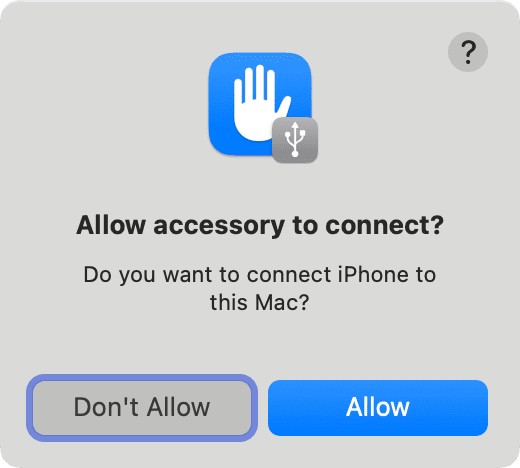
- Disconnect the cable and plug it back in. The prompt should reappear.
- Click Allow.
On the iPhone — “Trust This Computer”
Right after you allow the accessory on the Mac, the iPhone shows its own prompt: “Trust This Computer?”. Tap Trust.
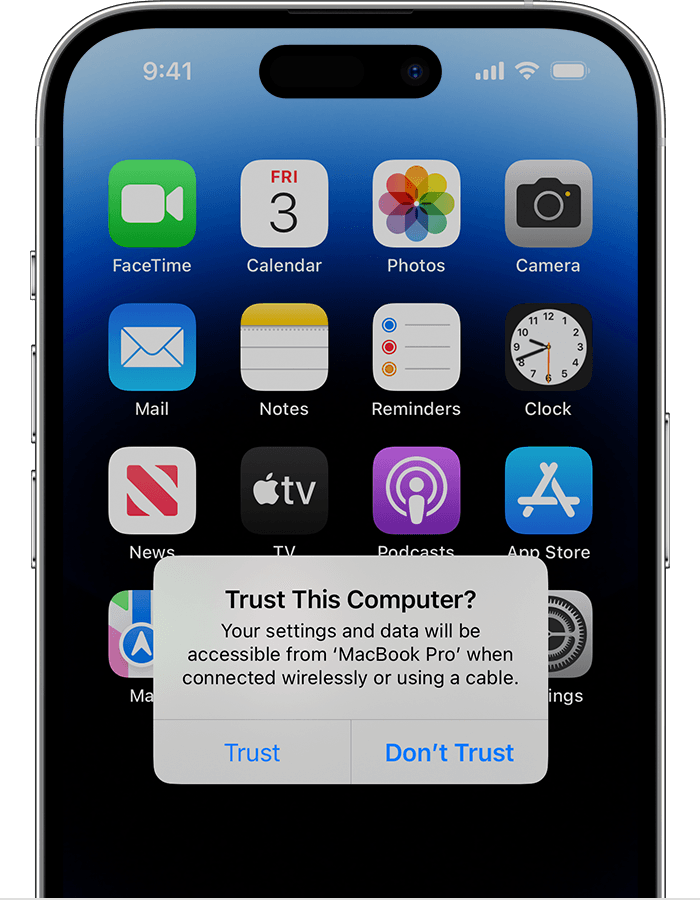
Then enter your passcode
After tapping Trust, iOS asks for the device passcode to confirm. Type it in. The phone briefly thinks, then exposes itself to the Mac and shows up in TinyRec’s source picker.
You only have to do this once per Mac. The next time you plug the same iPhone into the same Mac, neither prompt appears — but if you wipe the phone, factory-reset it, or connect to a different Mac, the whole flow runs again.
Still not working?
If you’ve run through all four steps and the iPhone still doesn’t appear:
- Try a different USB port on the Mac — a flaky port can look exactly like a flaky phone.
- Quit other apps that might be holding the device — QuickTime Player, Xcode, Reflector, OBS. Only one app at a time can record an iPhone screen.
- Reboot the Mac. The macOS USB stack occasionally gets stuck on long-running sessions; a reboot clears it.
- Reach out — DM @davidtranwd on X or email nam.trankhanh.vn@gmail.com with the iPhone model + iOS version and we’ll dig in.
What’s next
- Recording reference — sources, audio, camera — the iPhone source-type details, once detection is working.
- Wrap your video in an iPhone bezel — once you’ve recorded, the editor’s Frame tab puts a real device bezel around the footage.