Audio editing
Mix system audio and microphone, clean up the recording with one-click noise reduction, and lay a music bed underneath — built-in library or your own file.
The Audio tab in the editor is where you mix and clean up everything the project sounds like. Each captured track is independent — toggle them on or off, set the volume, and (optionally) run noise reduction on the mic.
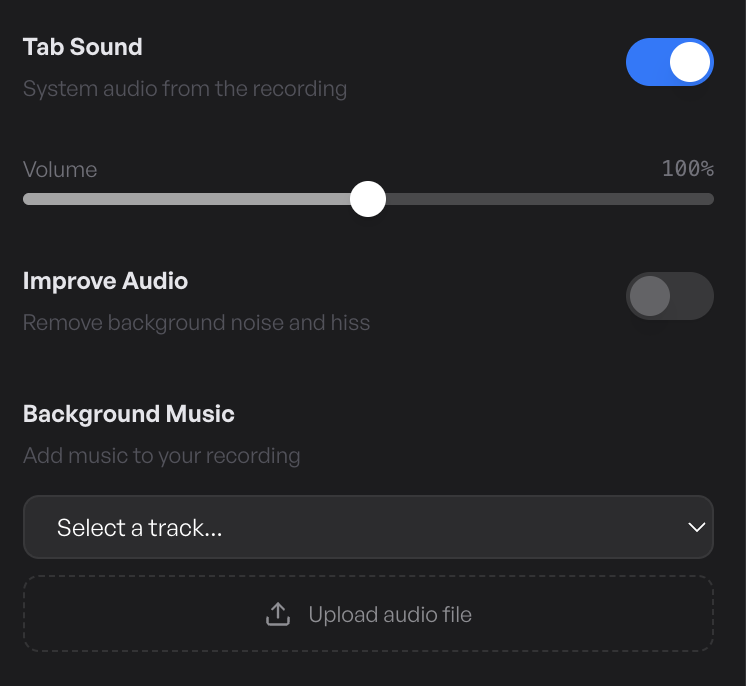
Turn each track on or off
Every audio track has a mute switch. Flip one off and that track is silent in the export — flip it back on and it returns exactly as it was. Mute is non-destructive, so feel free to A/B mid-edit.
Volume
Each track has its own volume slider. Pull the loud one down to balance against a quiet one rather than re-recording. Per-clip volume is also available — click any clip on the timeline and adjust just that segment’s level if one take is louder than the rest.
Noise reduction (Improve audio)
The Improve audio toggle at the top runs the microphone track through an AI noise-removal pass. Background fan, keyboard chatter, distant traffic, room hiss — pulled down without touching the voice.
Default is off. Flip it on if your room isn’t quiet, or if you recorded somewhere with HVAC running. The processing happens during export — the editor preview gives you a representative result so you can A/B before committing.
Background music
Click the Background music dropdown to browse a curated Pixabay library — chill, upbeat, corporate, lo-fi. Click one to preview, click again to apply. The mix slider sits below — set how loud the music is relative to the voice. A typical mix is around 15–25% so the music supports the narration without competing.
Music ducks under voice automatically when Improve audio is on. The narration always wins; the music dips a few dB whenever someone is speaking and lifts back up in the gaps.
Upload your own audio
Don’t like anything in the library? Drop your own file into the upload area on the Background music section — .mp3, .wav, .m4a, .ogg, or .aac. It becomes the project’s music bed and mixes via the same volume slider.