Write a script with multiple scenes
Plan a multi-scene project, then record each scene against its script — with a teleprompter that's invisible to viewers.
Quick recording is great for one-shot clips. But the moment you’re trying to record anything longer than a minute, anything with multiple sections, or anything you want to sound polished, the script flow saves you from the worst part of recording: forgetting what you were going to say.
Pick Write a script first on the home page instead of Quick recording. You draft your scenes ahead of time — one per “section” of the final video — then record them one by one.
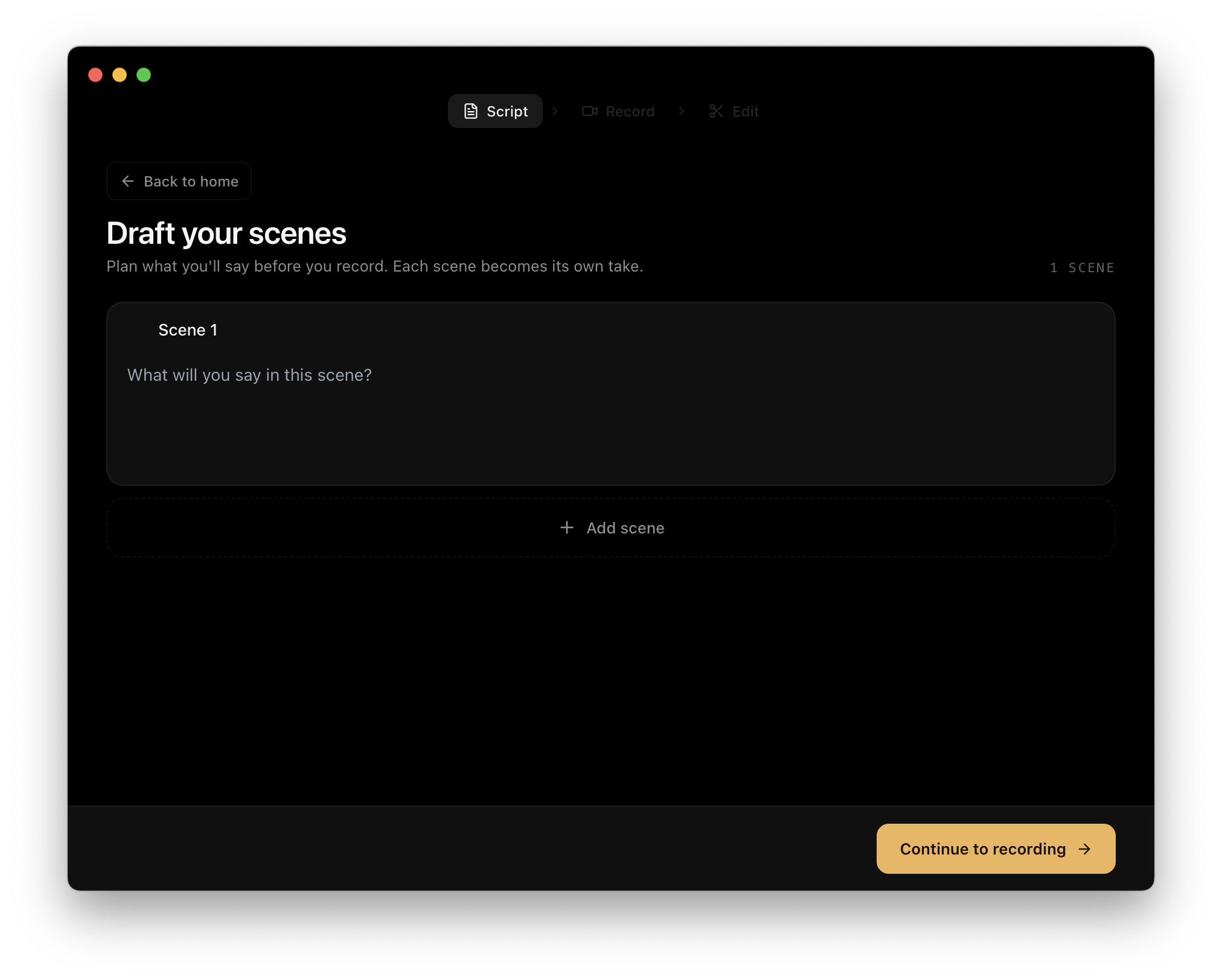
Why this is better for longer videos
-
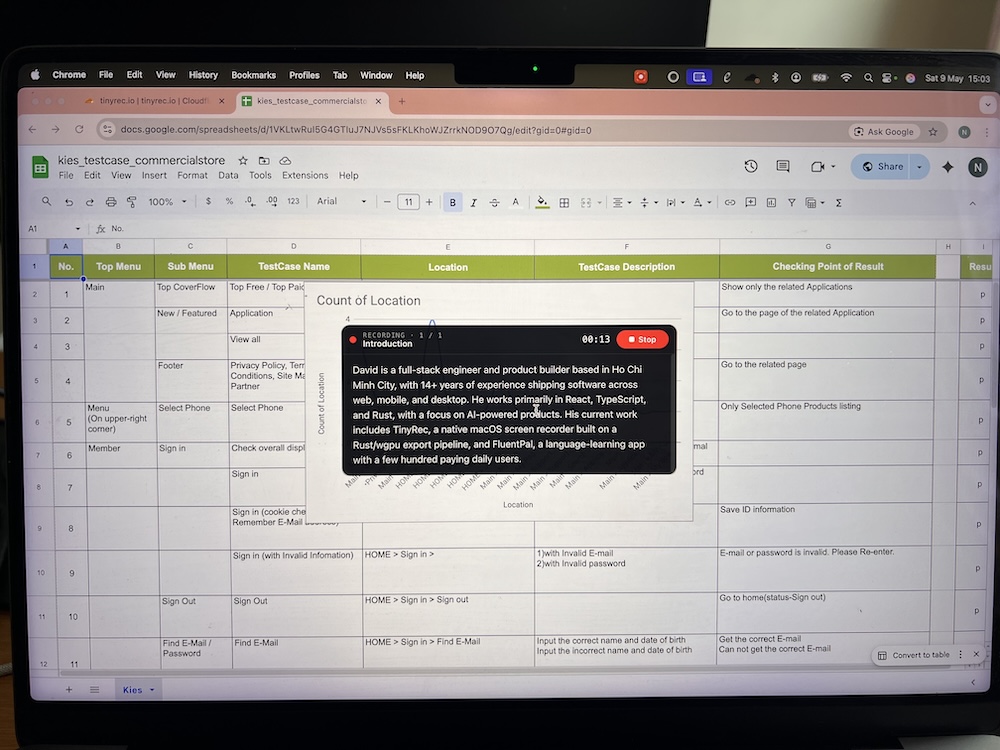
Your script is on-screen as you record — but not in the recording. A floating teleprompter shows the script for the current scene while you record, so you can read it like a real teleprompter. The window itself is invisible to your viewers (same as the recording indicator), and you can drag it anywhere on screen if it covers something you want to interact with.
-
Record one scene at a time. Mess up scene 4? Retake just scene 4. The other scenes stay exactly as they were. No more “ugh, I have to start the whole 5-minute take over.”
-
Built for long videos. Most recordings over a minute or two are easier to plan as a sequence of short scenes than a single take. Two-minute tutorials, five-minute product walkthroughs, ten-minute deep-dives — all become a list of 30–60 second scenes you knock out one by one.
-
Works for every source type. Script projects support Screen, Window, Region, and iPhone captures interchangeably. You can record scene 1 on your Mac screen, scene 2 of your iPhone screen, scene 3 of a specific app window — all in one project, all in the same final export.
-
Renames stick everywhere. Click any scene title (Scene 1, Scene 2…) to rename it (“Intro”, “Show the dashboard”, “Wrap-up”). The new name appears on the teleprompter while you record, so you always know which scene you’re in.
What’s next
- Recording reference — sources, audio, camera — the full reference for the recording dashboard. Everything in this guide assumes you know how the recorder works.
- App overview — Home, Recorder, Editor — the three surfaces and how they connect.