Wrap your video in an iPhone bezel
Drop a real iPhone frame around your iOS screen recording — pick a model, pick a colour, ship it. No iPad or Android frames yet.
A raw iPhone screen recording is a tall rectangle of pixels. Wrap it in a real iPhone bezel and the same footage suddenly reads as a phone in someone’s hand — exactly the framing you want for product demos, App Store previews, and Instagram-bound mockups.
The Frame tab in the editor’s settings panel handles this. It only activates for iPhone recordings (the tab is disabled when the source is a Mac screen, window, or region capture).
Toggle the frame on
The Frame tab opens with a two-button choice at the top:
- No frame — the iOS recording sits in the canvas as a tall rectangle, framed only by your wallpaper and padding.
- iPhone bezel — drops a real iPhone bezel around the recording with the screen inset to fit.
When you load an iPhone recording into the editor, TinyRec auto-selects the bezel for you (the latest top-of-line model, in its hero colour) so you see the framed view immediately. If that’s the look you want, you’re done.
Pick a model
The model row shows every iPhone supported, ordered newest-first. The current catalogue covers everything from iPhone 17 Pro Max down to iPhone 6s — Pro, Pro Max, Air, Plus, and mini variants are all in there.
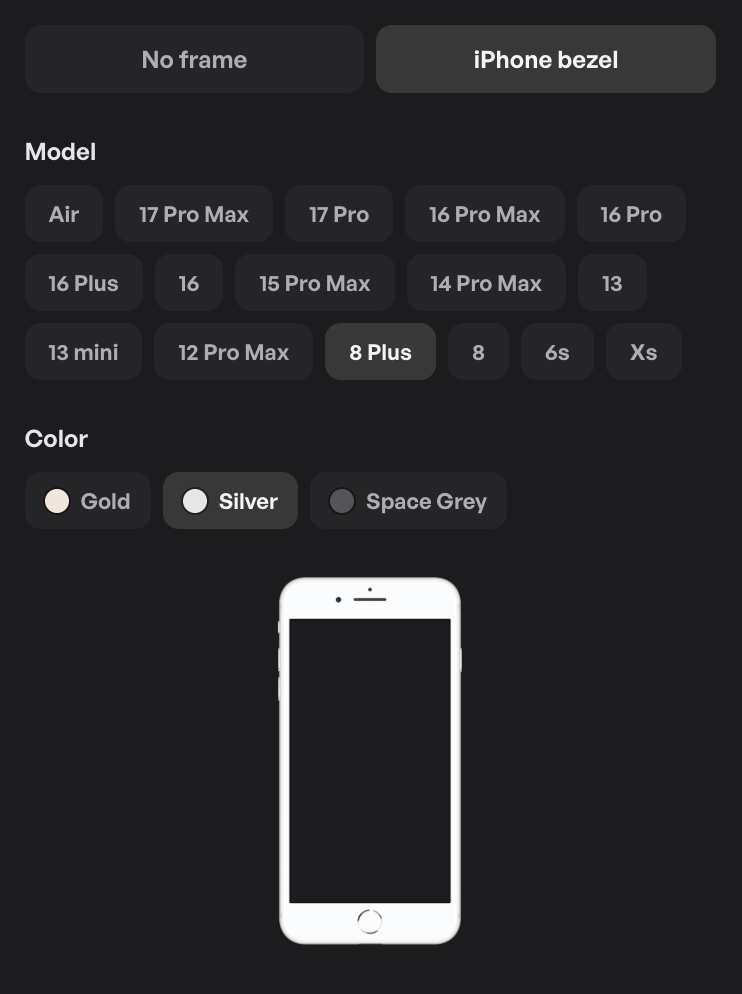
Click any model to apply it. The preview thumbnail in the panel updates immediately, and the canvas reflows to fit the new bezel.
Pick a model that matches the device you actually recorded on if you can — a 17 Pro bezel around a recording from an older phone with a lower-resolution screen will look slightly soft. The bezel is cosmetic; the pixels inside it are still the source video.
Pick a colour
Each model has its real-world colour lineup as picker swatches below the model row. iPhone 17 Pro ships with Cosmic Orange, Deep Blue, and Silver, for example. Earlier models have their own palettes.
The colour change is visual only — the bezel image swaps but everything else (size, position on the canvas, padding around it) stays the same. Click around freely; nothing else needs re-tuning.
How the frame fits
The bezel is sized to fit the canvas using the same padding rules as a regular frame style. The recording inside it is cover-fit — the screen rectangle is filled by your video, with any aspect mismatch cropping rather than letterboxing. Modern iPhone rounded corners and the notch / Dynamic Island shape are handled by a per-model mask, so the screen content inside the bezel is correctly clipped.
The whole thing scales with the canvas — switch the project’s aspect ratio, change padding, or resize the export, and the bezel stays proportional and centred.
The bezel is the frame around your recording — it isn’t the cursor highlight, the wallpaper, or the camera bubble, all of which still apply over the top. You can stack a fullscreen-camera segment, an annotation, or a zoom on an iPhone-framed recording exactly like a Mac one.
What about iPad and Android?
Not yet. The Frame tab is iPhone-only today, even though iPad and Android device data lives in the codebase. If you record an iPad screen via the same iOS connection, you’ll get the recording but the Frame tab stays disabled. Same for Android — there’s no recording path for it at all.
If iPad or Android frames matter to you, let us know which models you’d use and we’ll prioritise.
What’s next
- Style your video — the wallpaper, padding, and frame styling around the bezel.
- Recording reference — how to set up and capture an iPhone screen in the first place.
- iPhone not detected — fixes for when the iOS source doesn’t show up in the recorder.