TinyRec 0.1.5: camera segments on the timeline, region recording fixes, and a guides site
Camera segments on the timeline
The Camera button next to the Mask dropdown in the timeline toolbar now opens a small menu with two options:
- Hide camera — drop a segment anywhere on the timeline and the camera bubble fades out for that range. Great for stretches where the face is in the way of something the viewer needs to see (a small button, a notification overlay, the corner of a UI you’re trying to demo).
- Fullscreen camera — push the camera out from its corner to fill the whole canvas for the segment’s duration. Useful for intros, outros, and reaction beats.

Both segments behave like every other timeline track — drag the body to move, drag the edges to resize, hit Backspace to delete. The hide-camera transition uses a 200ms smoothstep fade at each edge so the bubble doesn’t pop in or out at boundaries, and the fade is identical between editor preview and the Rust export pipeline.
Apply zoom level to all
Tuned a single zoom segment to the right depth and want every other zoom in the project to match? There’s a new Apply zoom level to all button under the zoom slider. One click sets every zoom segment to the current depth, with a single undo entry so Cmd-Z reverts the bulk apply cleanly.
This is the most-requested zoom workflow tweak. If you tune one segment until it feels right, the rest of the video usually wants the same value — now you don’t have to drag the slider on each one.
Region recording, fixed
Two bugs that bit anyone using the Region source.
- Black bars around the captured content are gone. When the region’s aspect ratio didn’t match the display’s, the SCStream output canvas was sized to the full display in pixels and the region got letterboxed inside it. Now the output canvas is sized to the region’s actual pixel dimensions (point size × backing scale), so the file is exactly the rectangle you dragged, edge to edge.
- Region selection works the second time too. Stop a region recording, start a new one, confirm — and the recording dashboard now actually opens. Previously a stale IPC listener from the first selection clobbered the second one’s window before its promise resolved, so the screen just went blank.
If you’ve been working around either of these, you can stop now.
Trim-from-left actually trims
Drag the left handle of a clip toward the right and the editor used to show the now-trimmed-out frames at the start. The clip would visually shrink on the timeline but playback still started from the original frame 0.
Three things needed fixing under the hood — single-source seek didn’t translate output time → source time through clip bounds, the time-update emit didn’t subtract clip.startMs, and there was no re-seek after a span change. All three are corrected, so trimming a clip’s left edge now does what you’d expect: the trimmed frames are gone from preview, playback, and export.
Editor surface cleanup
The editor window had a leftover white macOS title bar above the dark editor content — fixed by switching to the same hiddenInset style the rest of the app uses. The traffic-light buttons sit inset over the dark canvas, so the editor reads edge-to-edge. The project title in the editor header is padded so it doesn’t collide with the buttons.
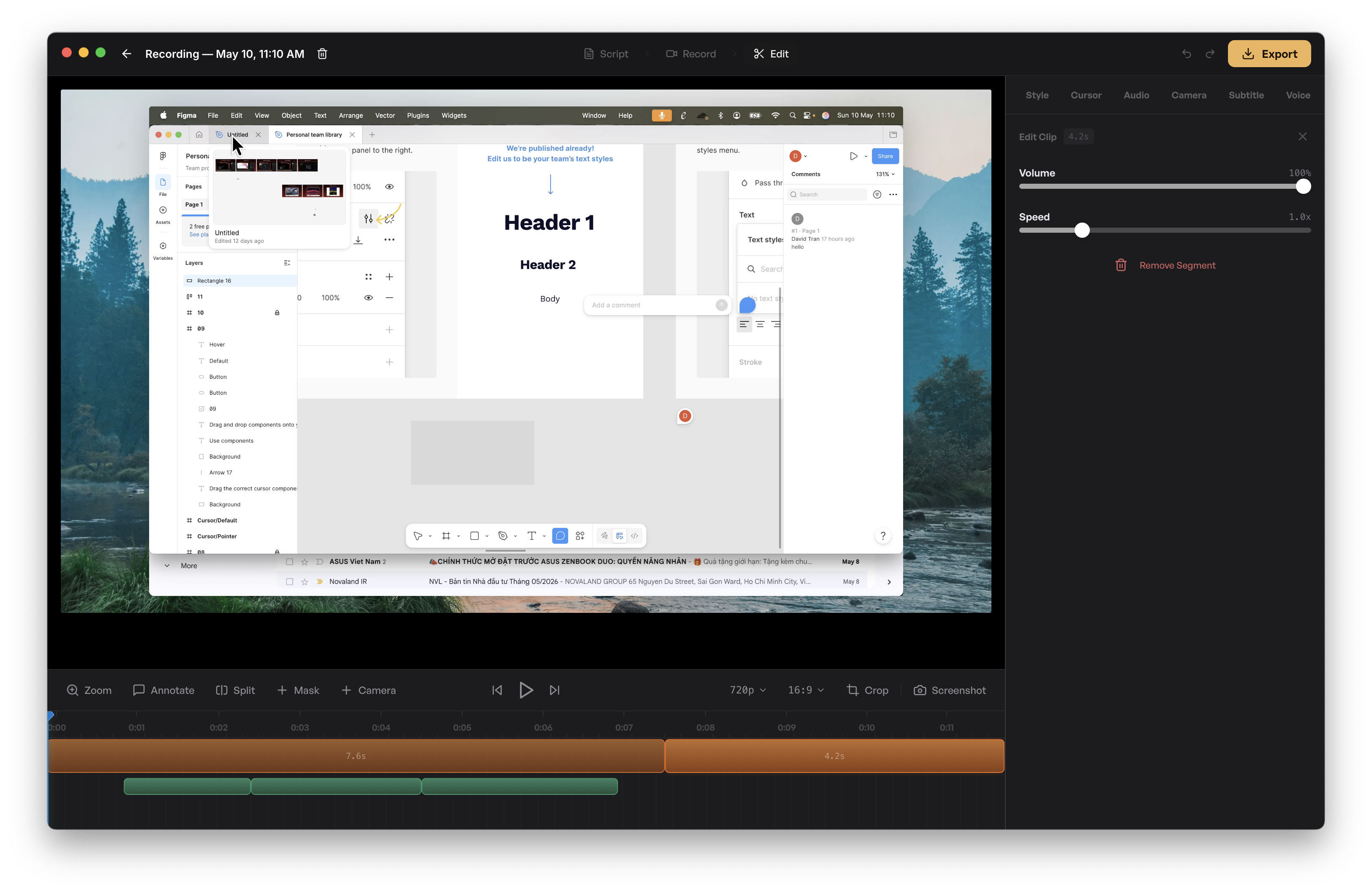
A long-standing hooks-order crash on the Settings panel is also gone. Previously, selecting an annotation could trigger a “Rendered fewer hooks than expected” error that turned the panel black; the offending hook was being called below an early return. Hook order is now stable across renders.
Smaller download — bezels are WebP now
Every iPhone bezel asset got re-encoded as WebP. Visually identical, but the bundle is about 20 MB smaller as a result. New downloads of TinyRec ship correspondingly faster, and existing installs pick up the slimmer assets on the next auto-update.
We have a guides site now!
tinyrec.io/guides launched this round. Most articles have real content for the first time — the previous batch were stubs.
What’s covered:
- Getting Started — install, permissions, your first recording, the recording dashboard reference, the script-flow editor, the app’s three surfaces, and a privacy explainer.
- Editor — overview, timeline, zoom, style (wallpaper / padding / shadow / blur), camera, audio editing, iPhone bezel, and export.
- Advanced — subtitles (with the Whisper download flow) and voiceover (now framed as a translate-then-synthesize localization pipeline using your existing subtitle cues).
- Troubleshooting — iPhone not detected, with the four-step checklist (cable / iOS update / unlock / Allow accessory + Trust This Computer + passcode).
There’s also a “Can’t find your iPhone? Troubleshooting” link at the bottom of the iPhone source picker that opens the guide directly. If you’ve hit a wall in TinyRec and weren’t sure what to do, the guides site is the place to start now.
Other things
- Per-source iPhone bezel. Multi-scene projects that mix iPhone scenes with Mac scenes now apply the bezel only to the iPhone scenes, not the Mac ones. Previously the bezel chosen for one iPhone scene leaked into every other scene of any source type.
- Default wallpaper updated. New project default is a cleaner gradient — better starting point.
Get it
Download for macOS — or update from inside the app (it’ll pick up automatically on next launch).
That’s the round. As always, ping me on X or in the Discord if anything’s off.