TinyRec 0.1.4: record your iPhone, frame it like a phone, and a sharper editor
Three weeks of work, one round release. The headline is iPhone screen recording — TinyRec can now capture an iPhone or iPad you have plugged in over USB, at the device’s native resolution, wrap it in a proper iPhone bezel, and export the framed video out the other side. Plus the click sound effects everyone keeps asking for, a continuous zoom slider, editable scene titles, and a stack of editor polish.
Record your iPhone over USB
Plug the phone in, unlock it, and trust the Mac. TinyRec sees it as a capture source the same way it sees a screen or a window — pick it from the source picker and hit record. The frames come straight from CoreMediaIO (the same plumbing QuickTime uses) so you get the device’s actual pixel grid, not a downscaled mirror.
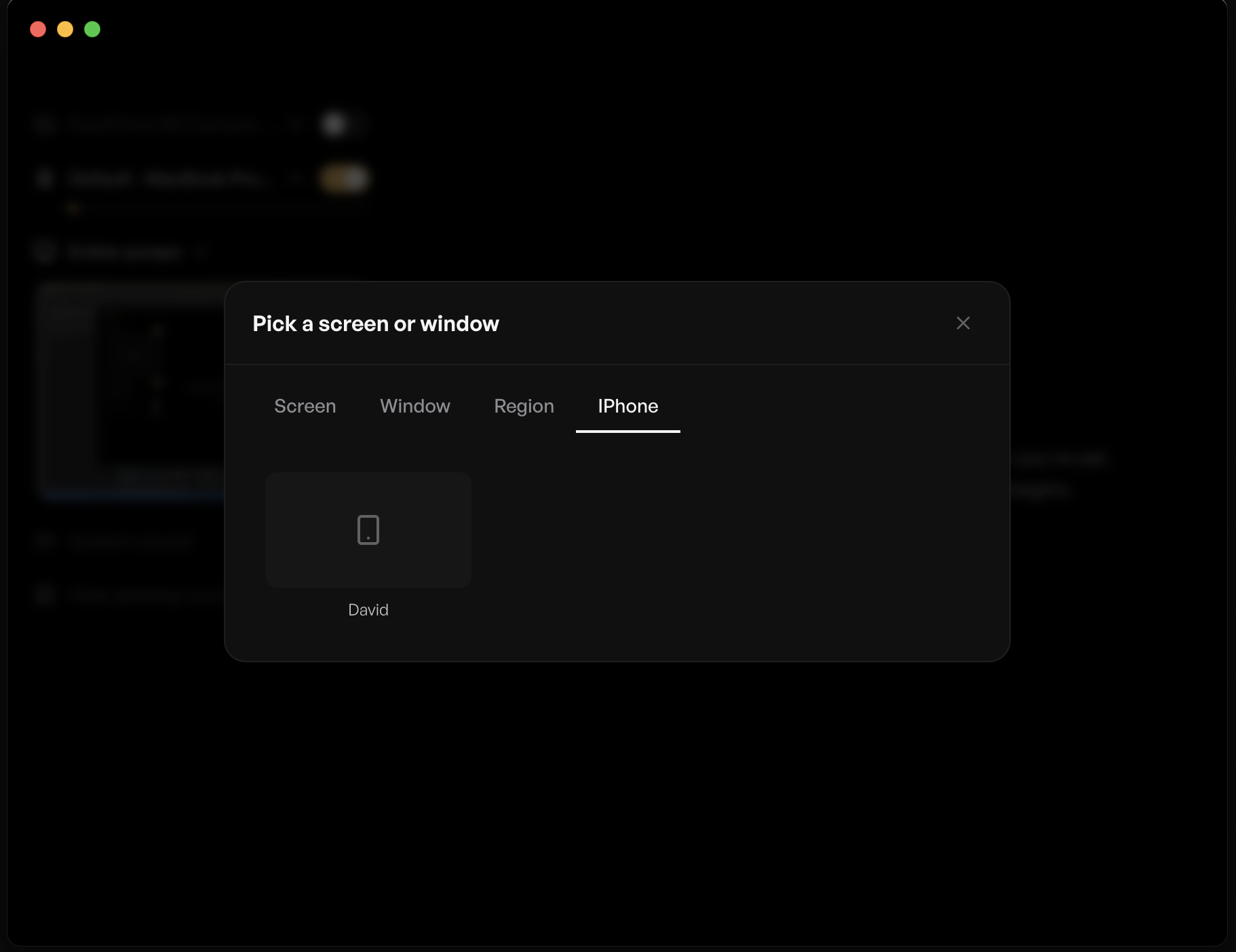
Once you stop, the editor opens with the recording at its native portrait resolution. The recommended export aspect (9:16) is set automatically and auto-zoom defaults to 4× on portrait sources so close-ups read clearly without you reaching for the slider.
Wrap it in a real iPhone bezel
A bare phone screen looks like… a screenshot in a tall rectangle. So there’s now a Frame tab in the editor with a picker for iPhone bezels. Pick a model and a finish; the bezel sits around your video in the preview and in the exported file. The Rust exporter precomputes the bezel mask once and applies it during composite — no per-frame overhead, the iPhone outline stays crisp at 4K.
The Frame tab is hidden for desktop and window recordings since a bezel doesn’t make sense there.
Click sounds
Toggle on a click sound preset and every mouse click in the recording gets a subtle audio cue. Great for tutorial videos where you want the viewer to hear what’s happening, not just see the cursor move. Mixed into the export at the right moment via the same audio thread that handles voice-over and background music.
Editor polish
Everything else stacked up under the hood:
- Continuous zoom slider. The focus panel’s zoom strength is now a smooth 0.1× slider from 1× to 5×, instead of six fixed presets. Existing projects keep their depth value —
3now literally means 3.0×, so a few pre-existing zooms look slightly different and you can dial them to taste. - Aspect-aware auto-zoom defaults. 16:9 → 2×, 9:16 → 4×, smooth ramp in between. Old behavior over-zoomed on landscape sources.
- Editable scene titles. Click “Scene 1” / “Scene 2” in the script editor to rename. The new name flows through to the recording dashboard and the floating recording indicator, so you see “Intro” instead of “Scene 1 / 5” while you’re recording.
- Unified Script / Record / Edit nav. Same icon-and-chevron strip across the editor and the recording dashboard. Hidden for quick recordings (no script step, nothing to flip back to).
- Recording indicator visible during the countdown. The 3-2-1 overlay no longer hides the script — you can read the line you’re about to deliver as the timer runs. The indicator’s elapsed timer holds at 00:00 until the recorder is actually rolling, and the Stop button shows “Please wait” while you’re waiting on the countdown.
- Cursor in exports now matches the editor preview exactly. Was sometimes too small in 9:16 exports; now scales with the same
baseScale × zoomScaleformula the preview uses. - First-frame playback blur fixed. PIXI’s async init was racing the resolution-bump effect, so the canvas stayed at the init’s lower DPR for a moment. Now it re-fires once PIXI is ready.
Multi-select on the home page
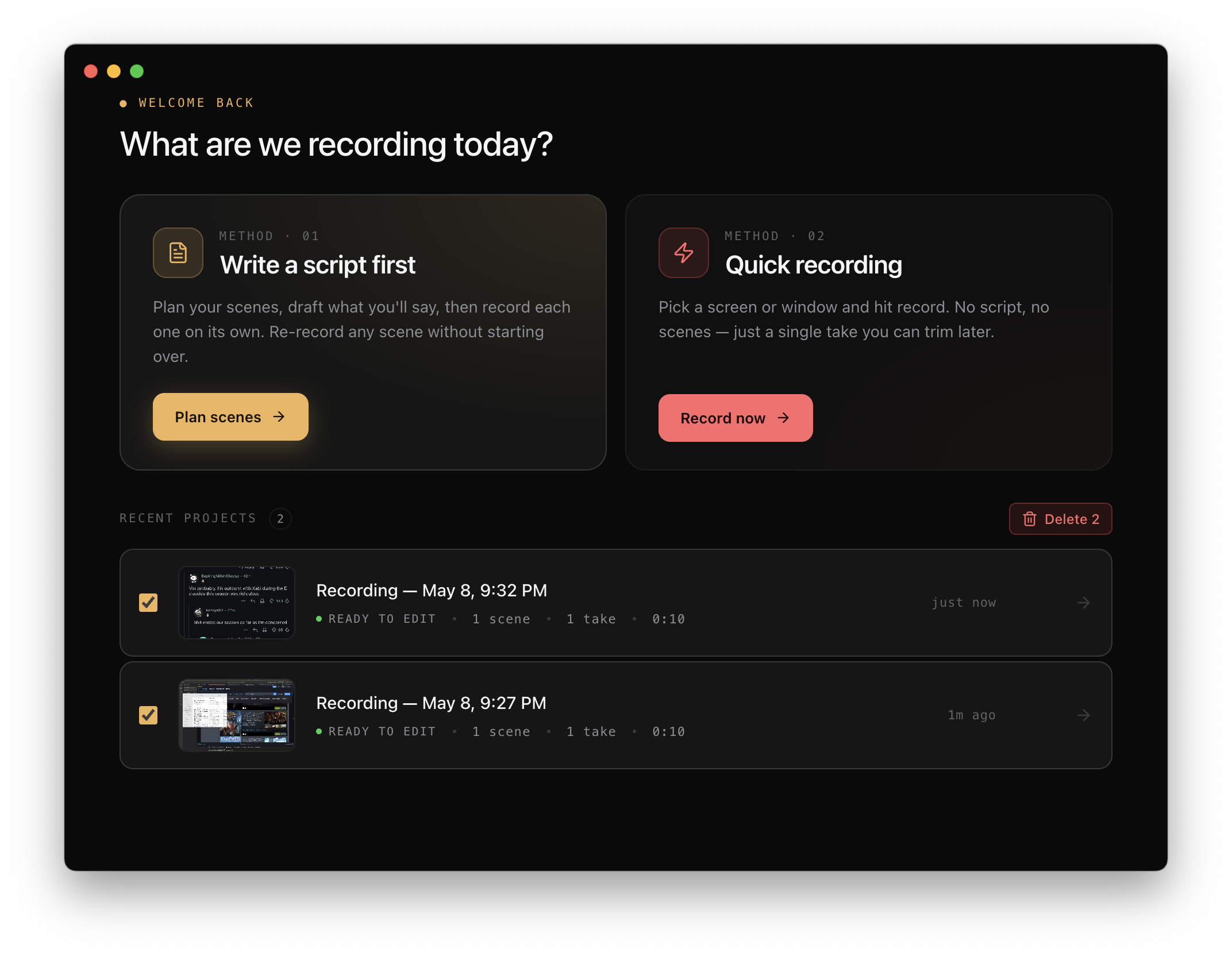
Tick a checkbox next to any project in Recent Projects; “Delete N” appears on the far right and confirms once for the whole batch. Keeps the home page tidy without seven confirm clicks.
Get it
Download for macOS — or update from inside the app (it’ll pick up automatically on next launch).
That’s the round. iPhone capture has been the most-requested feature for months; it’s good to have it shipped. If you record with it and hit anything weird, ping me on X or in the Discord.